Screen color appearance shifts slightly between different viewing angles
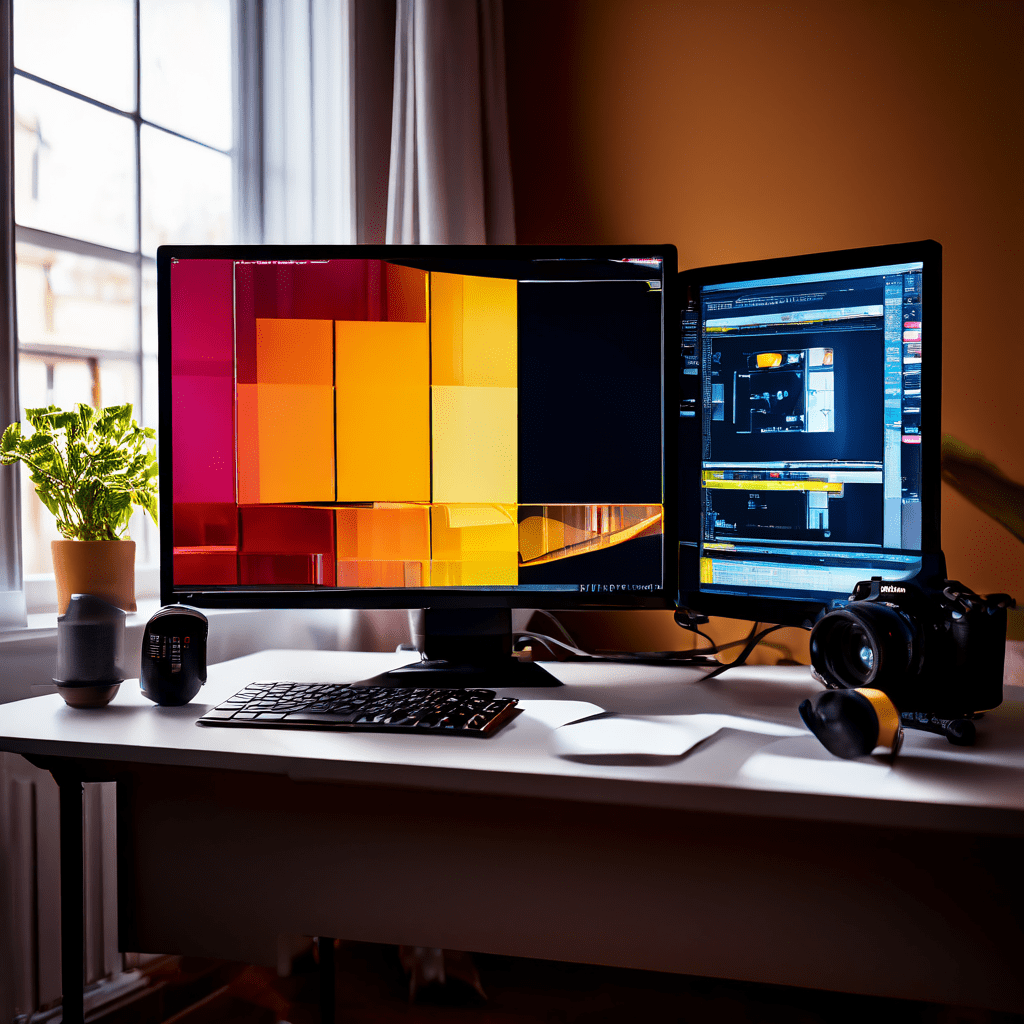
Symptom Diagnosis: Color Shift at Different Viewing Angles
You notice that the color on your monitor appears slightly different when you move your head left, right, up, or down. A white background may take on a yellow or blue tint. Blacks may look washed out or turn gray. This symptom is not a sign of imminent hardware failure in most cases, but it indicates a fundamental panel technology characteristic or a misconfiguration in color management.
Diagnose the severity first. If the shift is subtle and only noticeable when you deliberately change your seating position, the issue is likely panel type. If the shift is extreme or accompanied by flickering, the cause may be a failing backlight or loose internal cable. Run a quick test: display a full-screen solid gray image and view the monitor from dead center, then from a 45-degree angle. Note the color temperature change.
Root Cause: Panel Technology and Viewing Angles
Every LCD monitor uses liquid crystals to modulate light. The alignment of these crystals determines how light exits the panel. In-plane switching (IPS) panels align crystals horizontally, producing wide viewing angles with minimal color shift. Twisted nematic (TN) panels align crystals vertically, causing rapid color and contrast degradation when viewed off-axis. Vertical alignment (VA) panels fall between the two, offering deeper blacks but noticeable gamma shift at extreme angles.
Color shift is a physical limitation of the crystal structure. No software fix can completely eliminate it on TN or budget VA panels. However, many users mistake correctable color profile issues for panel limitations. A mismatched gamma setting or incorrect color temperature in the monitor’s OSD can exaggerate the shift. Verify that your monitor is not in a “Game” or “Vivid” mode, which often pushes saturation and contrast beyond accurate levels.
Additionally, ambient lighting plays a role. A bright window on one side of the monitor creates a perceptual color shift that is not actually a panel defect. Rule out environmental factors before assuming hardware replacement is required.
Solution 1: Adjust Monitor On-Screen Display (OSD) Settings
The OSD menu is the first and safest intervention point. Do not modify system registry or GPU driver settings until you confirm the OSD baseline.
- Press the physical button on your monitor to open the OSD menu.
- Navigate to the “Color” or “Picture” section.
- Set color temperature to “Normal” or “6500K”. Avoid “Cool” or “Warm” presets.
- Reset gamma to the default value. On most monitors, this is 2.2.
- Disable any dynamic contrast or “Smart” mode.
- Save the settings and exit.
After applying these changes, view the solid gray test image again from multiple angles. If the shift is reduced, the OSD profile was the primary cause. If no improvement occurs, proceed to Solution 2.
Solution 2: Calibrate Using GPU Driver or Software
Software calibration cannot change panel physics, but it can neutralize the perceived color shift by adjusting the color lookup table (LUT) at the operating system level. This solution is effective when the shift is consistent across the entire screen but varies only by angle.
Steps for Windows 10/11 using the built-in Display Color Calibration tool:
- Press
Windows Key + R, typedccw.exe, and press Enter. - Follow the wizard to set gamma, brightness, contrast, and color balance.
- During the gamma step, adjust the slider until the dots in the center image are barely visible. This corrects mid-tone color shift.
- During the color balance step, use the slider to remove any red/blue/green tint that appears when you view the screen from your normal working angle.
- Complete the wizard and save the new calibration profile.
Caution: Calibration profiles apply globally. If you share the monitor between multiple users, each user must run calibration separately. Just as Loading times differ when using multiple accounts within same app, specific system profiles can create variations in the user experience. Incorrect gamma settings can cause eye strain and image banding.
For NVIDIA or AMD GPU users, open the respective control panel:
- NVIDIA Control Panel: Under “Display” > “Adjust desktop color settings”, select the correct monitor, then fine-tune digital vibrance and hue. Do not exceed 55% digital vibrance.
- AMD Radeon Software: Under “Display” > “Color”, adjust the temperature slider toward 6500K and reset custom color settings.
After calibration, run the gray test image again. The color shift should be reduced noticeably on IPS panels and moderately on VA panels. TN panels will still show significant shift beyond 30 degrees.
Solution 3: Physical Adjustment and Panel Assessment
If software and OSD adjustments fail to resolve the issue, the limitation is purely hardware. In this case, physical repositioning of the monitor is the only viable low-cost option.
Checklist for physical optimization:
- Position the monitor so that your eyes are level with the top edge of the screen. This minimizes vertical viewing angle.
- Tilt the screen back slightly (5-10 degrees) to align the panel’s optimal viewing cone with your head position.
- Reduce ambient light sources directly behind or beside the monitor. Use bias lighting behind the screen to reduce perceived contrast shift.
- Verify that the monitor is not set to portrait or pivot mode unless physically rotated.
If the color shift is unacceptable after all adjustments, the panel type is incompatible with your usage scenario. A TN panel user in a graphic design workflow will never achieve accurate color across angles. Consider upgrading to an IPS panel with a specification of 178 degrees viewing angle.
Pro Tip: Monitor Panel Type Identification
You can identify your panel type without disassembling the monitor. Check the exact model number on the back label, then search for its panel specification on Panelook or TFT Central. Alternatively, perform a simple pressure test: gently press the screen surface. If the colors ripple in a cross pattern, it is a TN panel. If the ripple is circular, it is an IPS or VA panel. Use this information to set realistic expectations for color angle performance.
Proper calibration profiles significantly reduce data-leak risk from cloud misconfiguration; on the desktop, the same principle applies to monitor settings. Configuration changes made without verifying exact names and paths cause system crashes. Always document your OSD settings before making changes.